Enabling TOTP MFA on Your BitOasis Account
A step-by-step guide to securing your account with Multi-Factor Authentication
Setting up Multi-Factor Authentication (MFA) adds an extra layer of security to your BitOasis account, protecting your personal information and digital assets. Follow the steps below to enable a Time-Based One-Time Password (TOTP) using Google Authenticator.
Get Google Authenticator
Download the Google Authenticator app on your iOS or Android device. If you already have it installed, skip to the next step.
Access Your BitOasis Account
Log into your BitOasis account. If you do not have an account yet, create one here.
Navigate to Security Settings
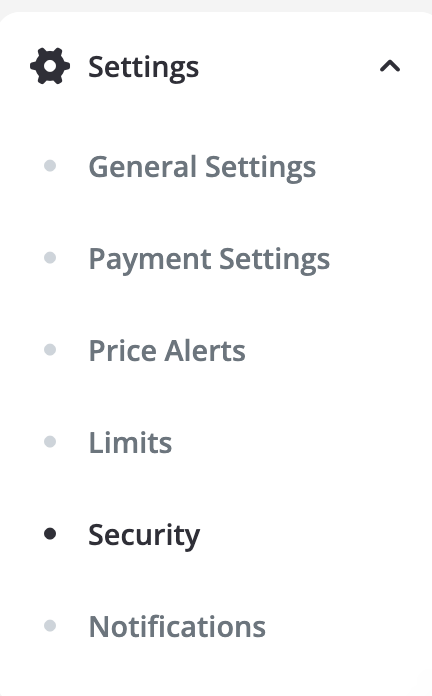
From your BitOasis dashboard, click on Settings and select Security from the dropdown menu.
Add Your MFA Device
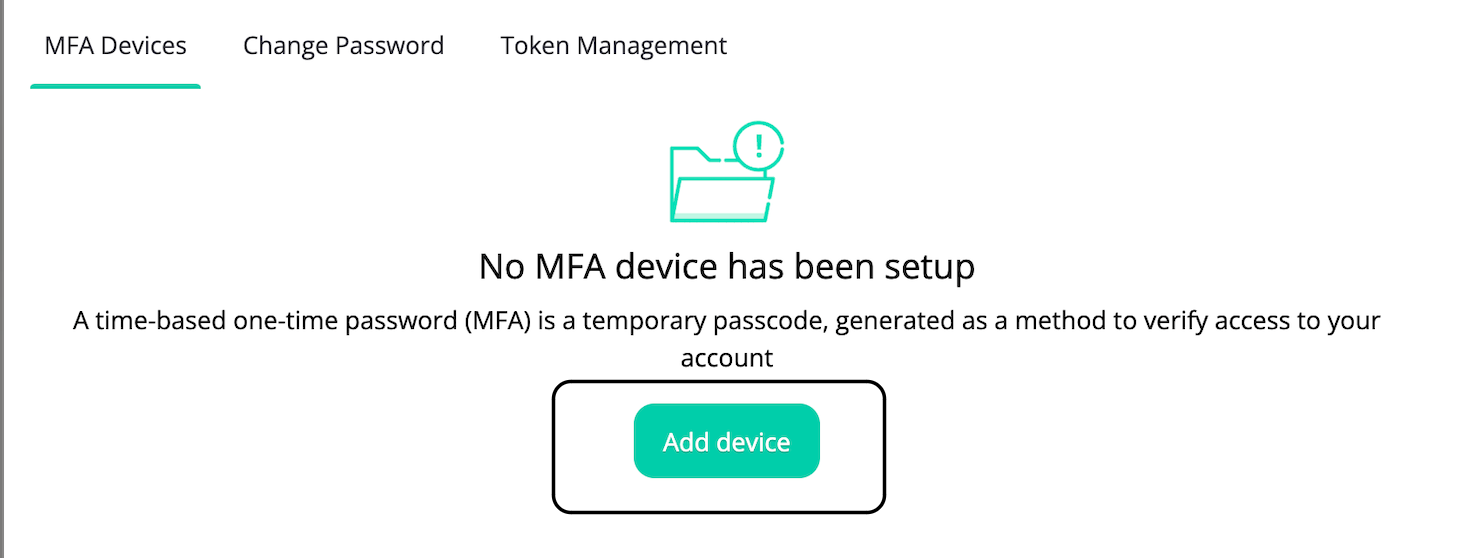
In the Security settings, click on MFA Devices and then click the Add Device button.
Verify with SMS
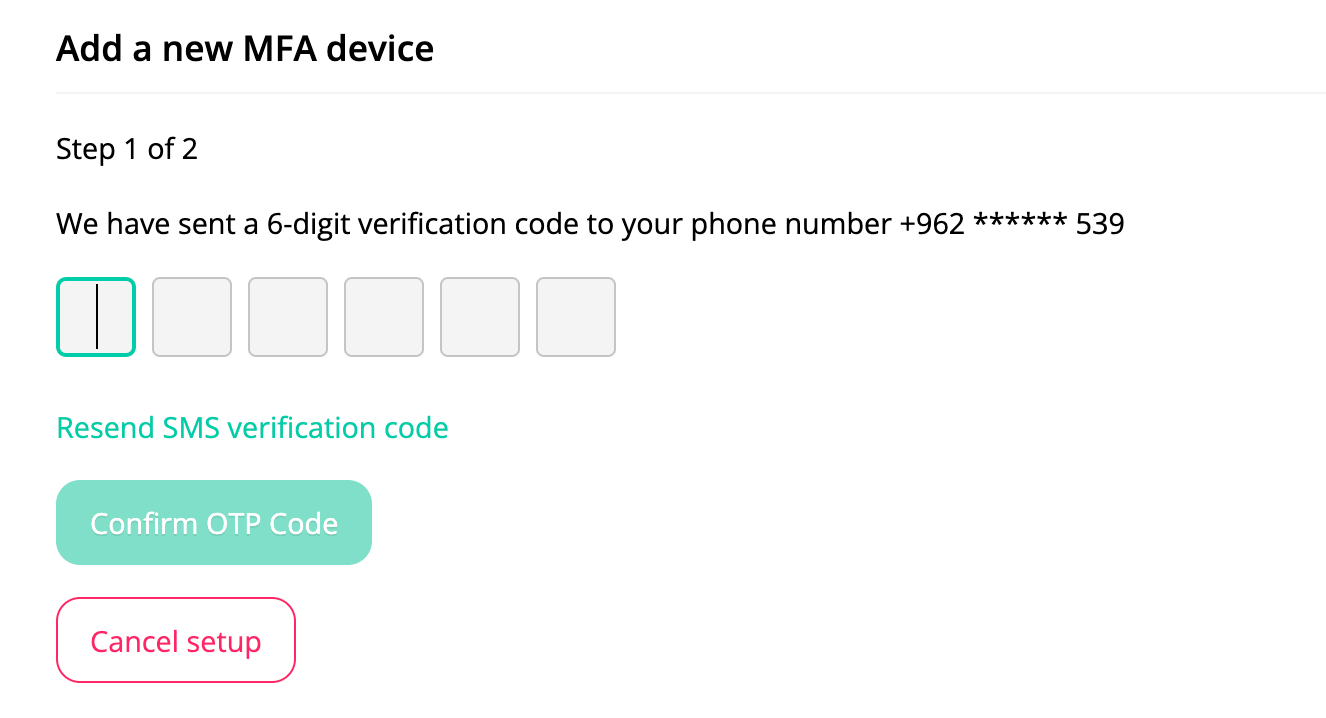
A 6-digit verification code will be sent to your registered mobile number. Enter this code in the box provided and click "Confirm OTP Code".
Configure Google Authenticator
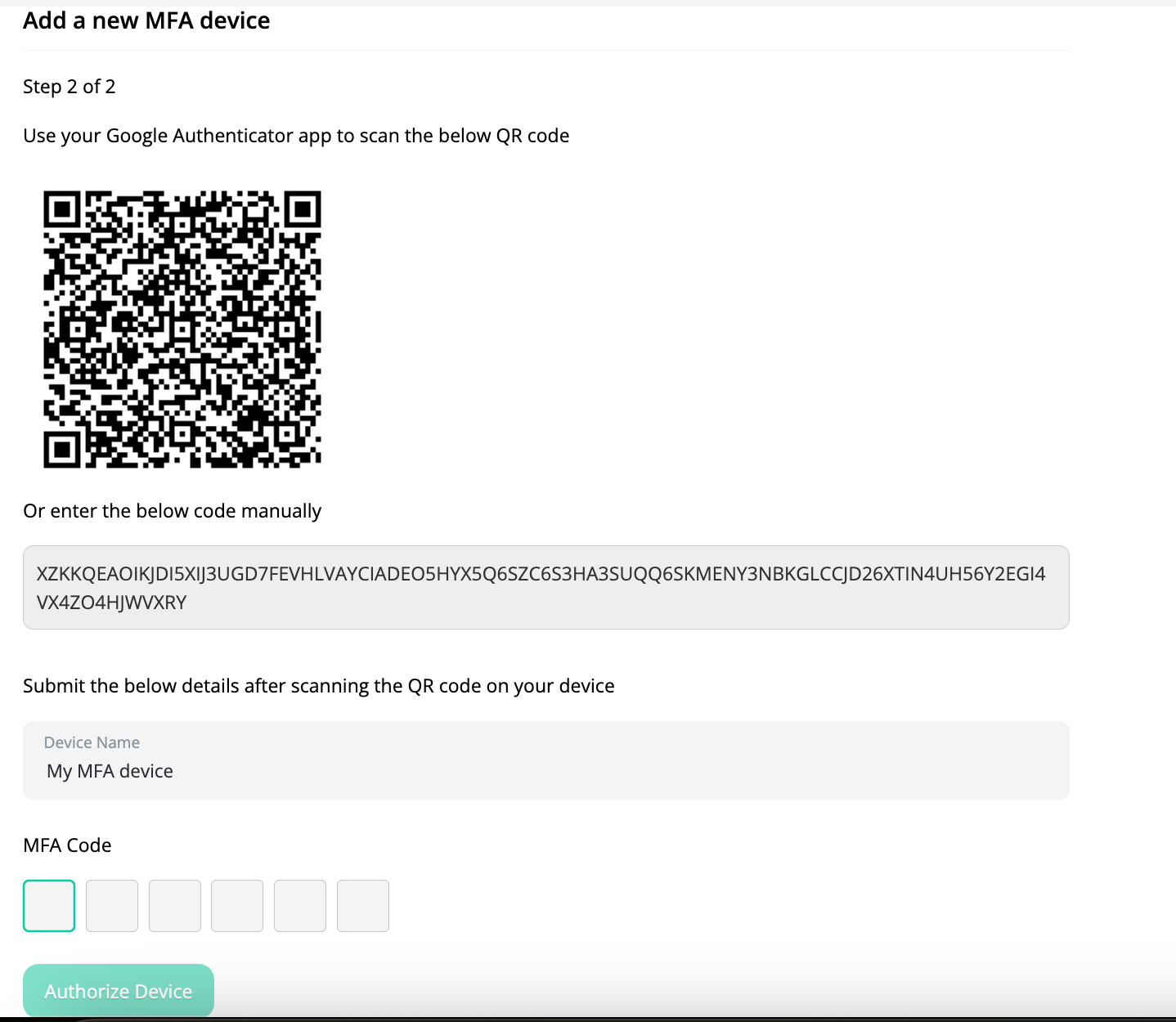
Open the Google Authenticator app on your mobile device. Scan the barcode displayed on the screen or manually enter the provided code. Name your device, input the MFA code, and click "Authorize and Save".
Secure Login
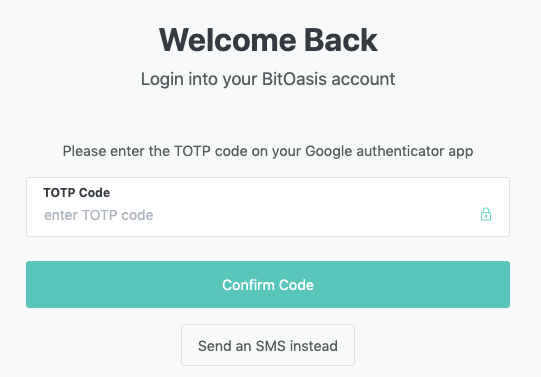
Log in to your BitOasis account again. After entering your username and password, you will be prompted to enter the 6-digit MFA code from the Google Authenticator app. Google Authenticator generates a new code every 30 seconds.
Need further support?
Our support team is available to help with any questions about MFA setup.
Was this article helpful?
That’s Great!
Thank you for your feedback
Sorry! We couldn't be helpful
Thank you for your feedback
Feedback sent
We appreciate your effort and will try to fix the article